

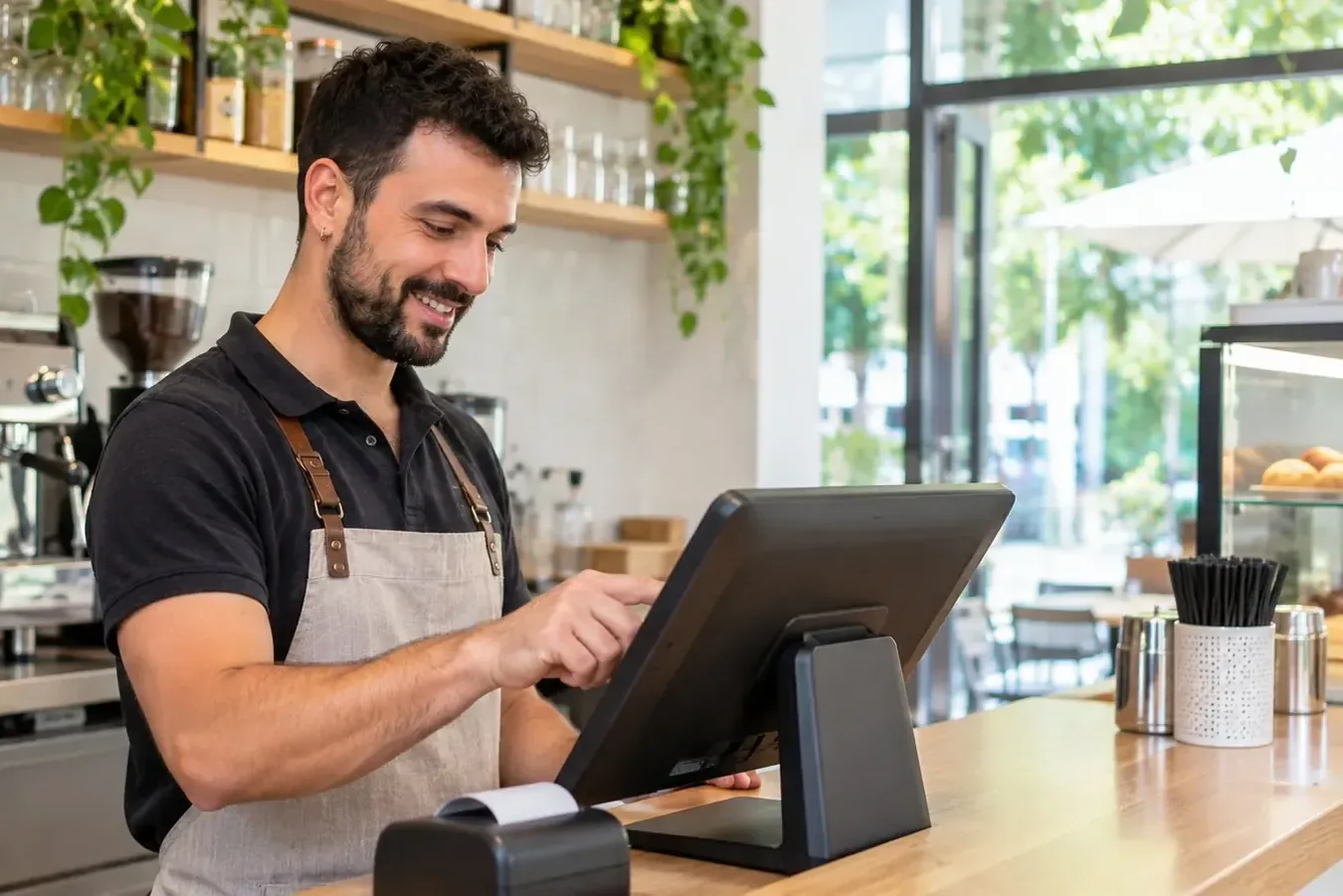

What hardware you need for the POS
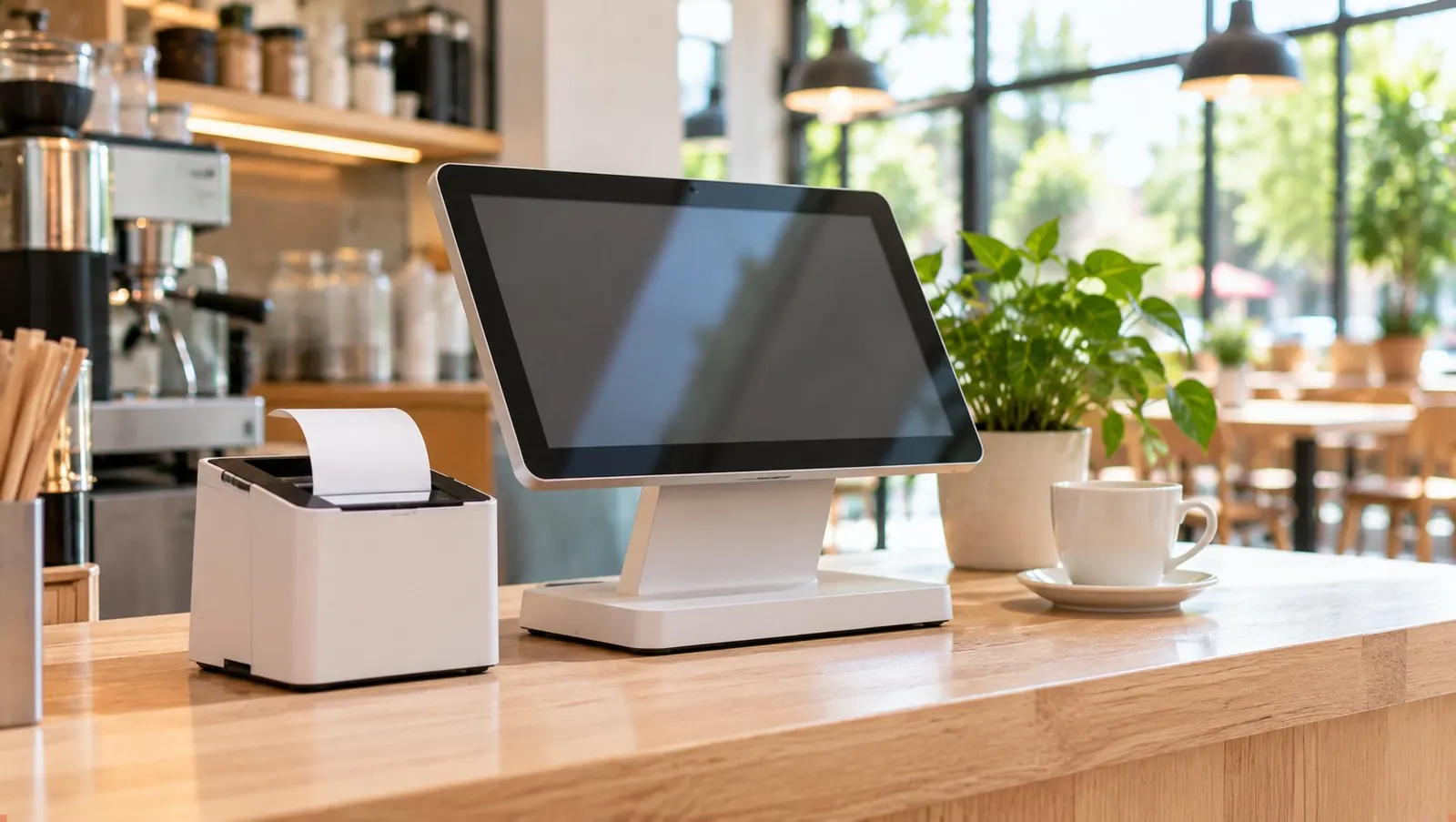

Cofactu's point of sale (TPV) runs in the browser: you start taking payments with what you already have and add a printer, drawer or scanner only if your business needs it.
- Category
- First steps
- Level
- Beginner
- Time
- ≈ 6 min
- Steps
- 5
- Updated
- August 2026
Before you start.
What you are about to solve.
The short answer: to run the POS you only need a device with a browser (a PC, a laptop, a tablet or a phone) and an internet connection. Nothing to install and no proprietary terminal to buy. You start invoicing with the equipment you already have on the counter.
Additional hardware (ticket printer, cash drawer, barcode scanner, kitchen screen) is optional and added according to the type of business. A freelancer who invoices from a phone needs nothing more; a restaurant with a kitchen will want a kitchen-order printer and a customer display. This guide tells you what is compatible, what we recommend and what budget to expect.
Everything you connect is done from the browser itself (using WebUSB), with no drivers or terminal software. That is why the POS is so portable: the same account works at the shop counter, on a tablet on the floor and on your phone.
Do it in order.
Open only the step you are on.
5 steps to review, issue and leave the document ready, without reading a whole guide at once.
-
Check your browser
Step 01: Check your browser
The POS works in any modern browser, but the hardware features depend on WebUSB. In Chrome, Edge or Brave (Windows, macOS, Linux or Android) you get everything: direct USB thermal printing, cash drawer opening and automatic kitchen orders.
- Chrome / Edge / Brave on desktop or Android: full compatibility. Recommended for the main till.
- Safari on iPhone, iPad or Mac: the POS works fully, but printing goes through AirPrint (no direct USB printer and no drawer pulse).
-
Decide whether you need a printer
Step 02: Decide whether you need a printer
It is not mandatory: you can operate on screen only or email the ticket to the customer. If you print, use an 80 mm ESC/POS thermal printer over USB, the standard in hospitality and retail. 58 mm rolls are also supported.
- Tested by us: Epson TM-T20III.
- Compatible by specification (ESC/POS USB): Epson TM-T20/TM-T20II, TM-T88V/T88VI/T88VII, Star TSP143/TSP654, Bixolon SRP-350/SRP-330 and, in general, any ESC/POS thermal printer over USB.
- You connect it from Settings → Hardware with one click ("Connect USB printer"), without drivers, and there it also confirms whether yours is compatible.
-
Add the cash drawer (if you take cash)
Step 03: Add the cash drawer (if you take cash)
The drawer does not connect to the computer: it plugs into the printer with an RJ11/RJ12 cable and the printer opens it with a pulse each time you take a cash payment. So a compatible printer is enough.
-
Add peripherals according to your business
Step 04: Add peripherals according to your business
Depending on what you sell, some peripherals speed up the day-to-day. All are optional and connect without complex setup.
- Barcode scanner: USB in HID mode (keyboard). No settings; the POS auto-detects scanning. Ideal for retail.
- Customer display: opens a second window on a secondary monitor with the total and the change in real time.
- Kitchen display (KDS): orders go to a screen in the kitchen, with no special hardware: any monitor with a browser will do.
-
Choose your kit by type of business
Step 05: Choose your kit by type of business
The first two are the important ones: in most premises you do not need to buy a terminal. Prices are indicative for the hardware.
- You already have a PC at the premises — nothing to buy, €0: the PC or laptop you already use, with Chrome (Windows 10 or 11). ⚠️ Windows 7 and 8.1 do NOT work: they stop at Chrome 109 and the interface looks broken. Check it at cofactu.com/compatibility.
- You already have a printer and drawer from another POS — minimum, ≈ €150–200 (the terminal only): Android touch terminal or mini-PC with Windows 11 + your current ESC/POS thermal printer + your current cash drawer. ⚠️ On Windows, if the previous POS program is still installed it may have the printer locked. It is solved by printing over the network, without uninstalling anything.
- Freelancer / street selling — minimum, €0 (use your phone): a phone or tablet with Chrome (Android) or Safari (iPhone/iPad).
- Bar / café (from scratch) — recommended, ≈ €250–350 for the complete pack: all-in-one Android 11+ touch terminal (10–15") or PC with Chrome + 80 mm USB thermal printer (Epson TM-T20III or equivalent ESC/POS) + pulse-driven cash drawer. ⚠️ A loose tablet is cheaper but usually has ONE USB-C that is also the charging port: either you charge or you print. For continuous service, a terminal with power and separate ports.
- Restaurant with kitchen — pro, ≈ €400–800: terminal or PC with Chrome at each point of sale + 80 mm ticket printer + bar/kitchen printer + kitchen display (KDS) on a monitor + customer display (secondary monitor) + tablet as an order taker at the table (optional).
- Shop / retail — recommended, ≈ €220–350: PC or laptop with Chrome + 80 mm USB thermal printer + USB barcode scanner (HID) + pulse-driven cash drawer.
When you finish you will know exactly what you need for your premises, what is compatible and what budget to expect, and you will be able to start taking payments today with the equipment you already have.
The questions that come up
when you put it into practice.
Do I need to buy a special POS terminal?
No. Cofactu's POS is software that runs in the browser. It works on any modern PC, laptop, tablet or phone; you do not have to buy a proprietary terminal or install programs.
Will the printer I already have work?
If it is an ESC/POS thermal printer that connects over USB (the standard 80 or 58 mm ticket printer), almost certainly yes. We tested Epson TM-T20III, Star TSP143 and Bixolon SRP-350, but any ESC/POS USB should work. Bluetooth-only printers or those with the manufacturer's own app do not work for direct printing.
Does the POS work on iPad or iPhone?
Yes, the POS works fully in Safari. The difference is printing: on iOS it goes through AirPrint instead of a direct USB printer, and the drawer cannot be opened by pulse. For the fixed till we recommend a computer with Chrome; the iPad is great for taking payments on the floor.
What happens if the internet goes down?
The POS keeps taking payments in local mode during short outages. Sales are saved and the submission to VeriFactu/AEAT is queued automatically, going out as soon as the connection returns. You do not lose any sale.
How is the printer connected, do I need to install drivers?
No drivers are needed. From Settings → Hardware you press "Connect USB printer", choose the printer in the browser dialog and that is it. It uses WebUSB, so you need Chrome, Edge or Brave.
Continue from here.
Without losing context.
Related to this task
More Cofactu guides
 Compliance≈ 6 min · Beginner Upload your digital certificate to Cofactu, step by step How to securely upload your .p12 certificate to Cofactu: AES-256 encryption, T-90 alerts before it expires and what to do if the file does not decrypt. Open the guide →
 Compliance≈ 30 min + identity check · Beginner How to request the FNMT digital certificate (Spain) Step-by-step guide to get the FNMT digital certificate (natural person or representative): request, identity verification and download, without getting lost on the way. Open the guide →
 Compliance≈ 10 min · Intermediate How to read an AEAT rejection in VeriFactu What the AEAT error codes (1xxx, 41xx, 5xxx) mean when you send a VeriFactu invoice, how to fix them and how Cofactu repairs the hash chain. Open the guide →